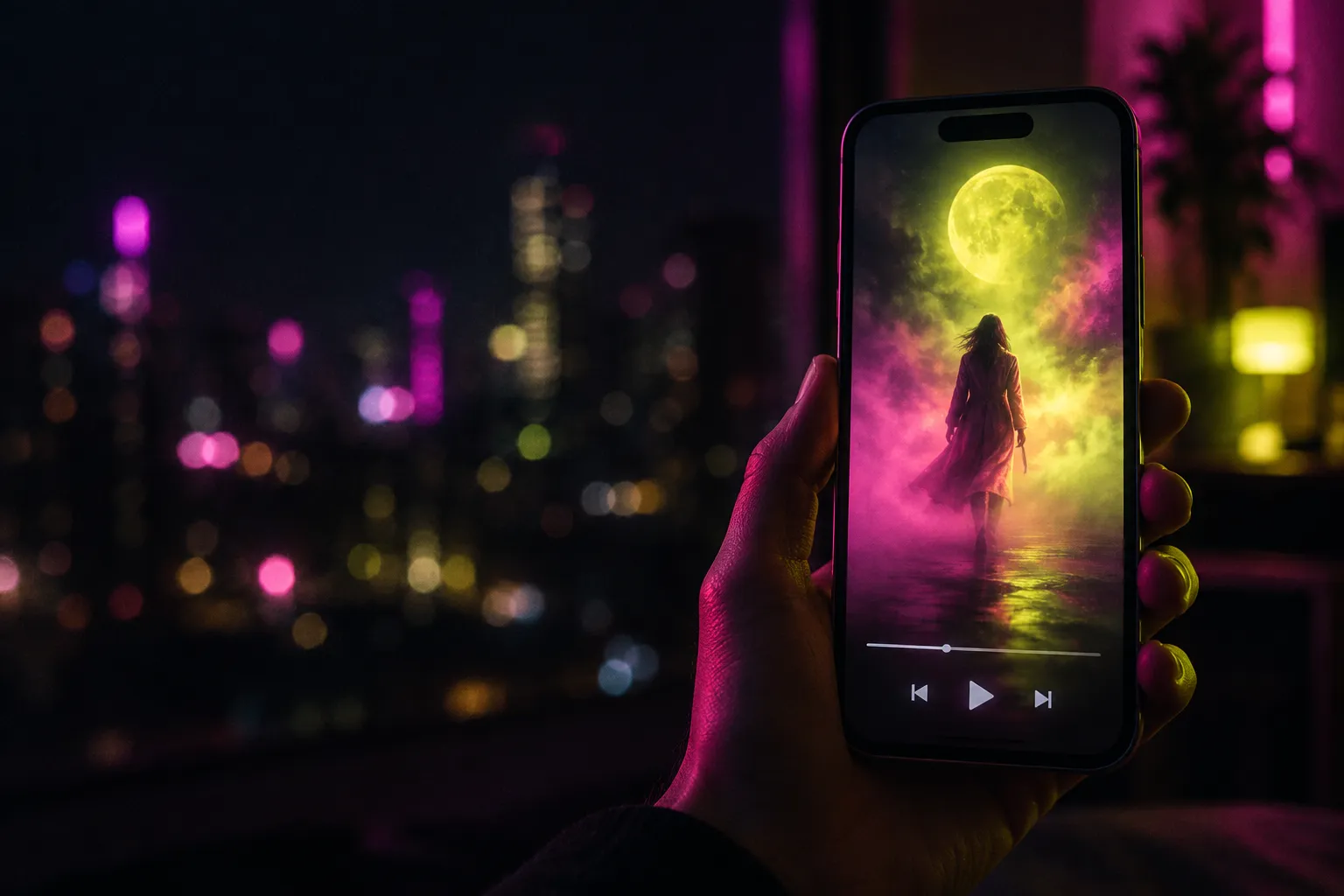
From Spotify’s guidelines, checked November 16, 2026
Spotify Canvas dimensions: size, length and file rules
The Spotify Canvas dimensions are short: a vertical 9:16 loop, 3 to 8 seconds long, 720 to 1080 px, saved as an MP4 or JPG. The usual export is 1080 x 1920. Below is the full spec, how to upload it, and what to do when Spotify rejects the file.
Make a vertical videoMusicVideo AI makes 15 to 30 second vertical clips. You cut a Canvas from one shot.
The spec
Spotify Canvas dimensions at a glance
- Length
- What Spotify asks for:3 to 8 seconds
- What to export:A 6 to 8 second loop
- Shape
- What Spotify asks for:Vertical, 9:16 ratio
- What to export:9:16, no black bars
- Size
- What Spotify asks for:Between 720 px and 1080 px
- What to export:1080 x 1920, or 720 x 1280
- File
- What Spotify asks for:MP4 or JPG
- What to export:MP4 (H.264) for video, JPG for a still
- Where it plays
- What Spotify asks for:Now Playing view, Spotify mobile app only
- What to export:Check it on a phone, not a laptop
- Who can add it
- What Spotify asks for:First main artist, with Admin or Editor access
- What to export:Any track, upcoming releases too
| Rule | What Spotify asks for | What to export |
|---|---|---|
| Length | 3 to 8 seconds | A 6 to 8 second loop |
| Shape | Vertical, 9:16 ratio | 9:16, no black bars |
| Size | Between 720 px and 1080 px | 1080 x 1920, or 720 x 1280 |
| File | MP4 or JPG | MP4 (H.264) for video, JPG for a still |
| Where it plays | Now Playing view, Spotify mobile app only | Check it on a phone, not a laptop |
| Who can add it | First main artist, with Admin or Editor access | Any track, upcoming releases too |
Spotify’s upload error page repeats the same four rules and warns that a file even slightly off in length or size can fail. So treat the Spotify Canvas dimensions as hard limits, not suggestions: a 9-second loop or a square file will not go through.
Size
What “720 px to 1080 px tall” means
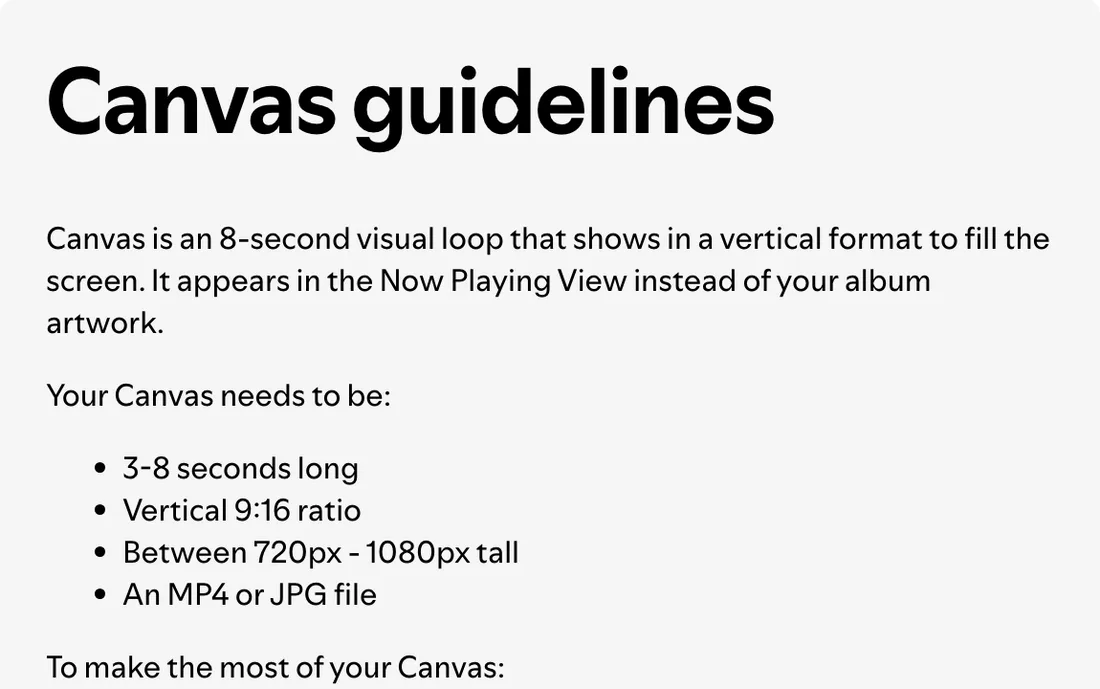
The pixel part of the Spotify Canvas dimensions is where people get stuck. Spotify’s list says “between 720px - 1080px tall”. Read word for word with a 9:16 shape, that would be a file only 405 to 608 px wide, which nobody makes. Guides and Canvas templates read the numbers as the short side of the frame, which gives two standard sizes:
- 1080 x 1920: the usual choice, the same size as a TikTok, Reels or Shorts video.
- 720 x 1280: the smallest standard size, and a lighter file.
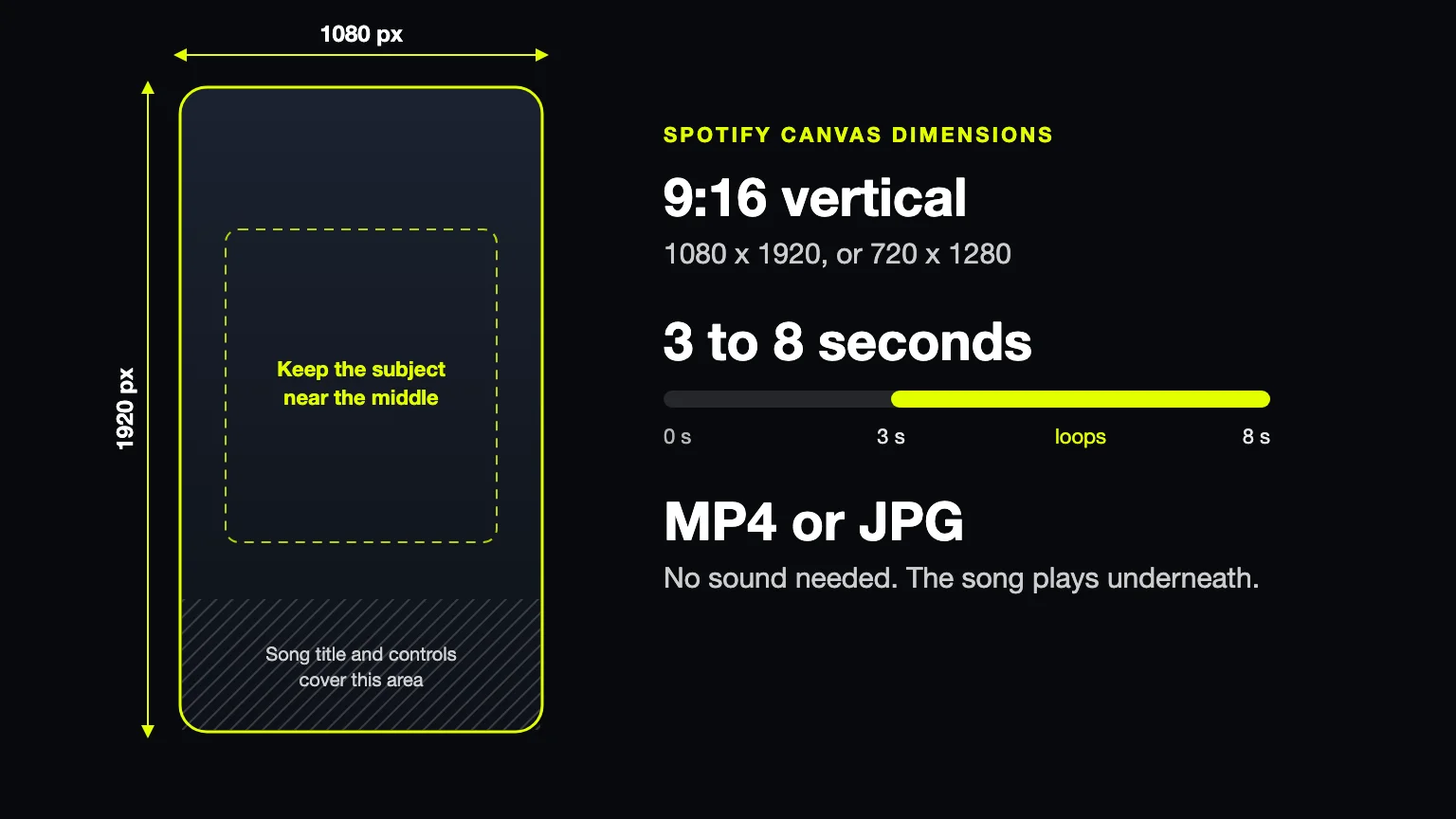
Do not upload a 4K file: Spotify’s range tops out at 1080, so scale it down to 1080 x 1920 first. Starting from a wide 16:9 video? Crop to 9:16 instead of adding black bars.
Length
Canvas length: 3 to 8 seconds, on a loop
A Canvas repeats for as long as the song plays, so the loop point matters more than the length. Spotify names three kinds of loop:
- 01
Continuous loop.
The last frame flows back into the first, so the loop never shows. Slow camera moves and drifting light work best.
- 02
Hard cut.
A clear edit at the loop point. Put it on a beat or a flash so it feels planned.
- 03
Rebound.
The clip plays forward, then in reverse. The easiest way to get a smooth loop from any short shot.
Aim for 6 to 8 seconds. Under 3 seconds is rejected, and a very short loop repeats so often it starts to feel like a glitch. Spotify also asks for footage without talking, singing or rapping, because a few seconds of looping mouth movement will never line up with the lyrics.
Framing and content
What to keep out of the frame
- The edges. Spotify notes that some phones cut them off. The song title and controls also sit over the lower part of the screen. Keep faces and the main subject near the middle.
- Your song title and artist name. The Now Playing view already shows them.
- Links, social handles, ticket offers and “follow me” text. The Canvas content policy says the Canvas is for the art, not promotion, and can remove one that sells.
- Fast cuts and hard flashing. Spotify says they can overwhelm listeners on a loop.
If the Canvas shows profanity, violence, drug use, sexual content or other sensitive themes, mark it explicit when you upload.
Upload
How to add a Canvas on Spotify
- 01
On the web.
Log in at artists.spotify.com, open Music, pick the track and click Add Canvas.
- 02
On your phone.
Open the Spotify for Artists app, tap Music, pick the track and tap Canvas.
- 03
Check it live.
Play the track in the Spotify mobile app and watch the loop go round twice.
You can add a Canvas to any track, including releases that are not out yet, so it can be ready on release day. You need to be the first main artist on the track with Admin or Editor access (Spotify’s steps).
Fixes
Canvas rejected or not showing
When the upload fails, check the Spotify Canvas dimensions first: open the file’s info and confirm it is 3 to 8 seconds, exactly 9:16 and no more than 1080 px on the short side. If it still fails, Spotify suggests uploading from the Spotify for Artists mobile app, or reinstalling it if you already use it.
When the upload worked but you see no Canvas, the Spotify Canvas dimensions are not the problem. It is usually the listener’s side (Spotify’s checklist):
- The device: Canvas plays only in the mobile app, on iOS 12 or later and Android 6.0 or later.
- Data Saver is on. Turn it off in Settings and privacy, Data-saving and offline.
- Canvas is off in Settings and privacy, Content and display.
- The listener’s country. Canvas is available in a list of countries on Spotify’s page, not everywhere.
- Split rights. Labels can add Canvas only to the version of a track they own.
Make one
Cut a Canvas from a music video clip
The easiest footage is a short music video for the release. Take your Canvas from it, and the Canvas, TikTok clip and Reels post all match.
MusicVideo AI makes that clip from your song: upload it, and it plans the shots on a storyboard, then makes a 15 to 30 second vertical video at 1080 x 1920, already the right Spotify Canvas dimensions. Each shot runs 3 to 8 seconds and cuts on the beat, so one shot is already Canvas length.
- 01
Make a 15-second vertical clip.
That is 15 credits for the video plus 3 for the storyboard. New accounts get 6 free credits for storyboards; the $19 Clip pack covers the video.
- 02
Pick one shot.
Choose a shot with no singing face and a calm start and end, so it loops well. A slow camera move is ideal.
- 03
Trim it and drop the sound.
Cut out that one shot in any editor (CapCut, iMovie, Premiere), keep it between 3 and 8 seconds, and remove the audio. The song plays under the Canvas anyway.
If you use the command line, FFmpeg does the trim in one line: ffmpeg -ss 4 -t 7 -i clip.mp4 -an -c:v libx264 -pix_fmt yuv420p canvas.mp4 (start at second 4, keep 7 seconds, no audio). The 1080 x 1920 size carries over, so the file meets the Spotify Canvas dimensions as it is.
Planning more visuals for the release? See when a visualizer or a music video fits, or what a full video costs.
Spotify Canvas questions
What are the Spotify Canvas dimensions?
The Spotify Canvas dimensions are a vertical 9:16 frame between 720 and 1080 px, which in practice means 720 x 1280 or 1080 x 1920. The loop runs 3 to 8 seconds and the file is an MP4 or JPG.
Can a Spotify Canvas be longer than 8 seconds?
No. Length is part of the Spotify Canvas dimensions: 3 to 8 seconds, and a longer file fails to upload. 6 to 8 seconds loops best.
Can a Canvas be a still image?
Yes. Spotify accepts a JPG as well as an MP4, at the same 9:16 shape and size.
Does a Canvas need sound?
No. The Canvas loops while your track plays, so leave the audio out of the file. It keeps the file smaller.
Why is my Canvas not showing on Spotify?
Check that you are on the Spotify mobile app, that Data Saver is off and Canvas is on in settings, and that Canvas is offered in your country. Canvas never plays on desktop.
Make the video your Canvas comes from
Upload your song and get a 15 to 30 second vertical clip at 1080 x 1920. Two storyboards are free.
Upload your song